
Maximize Your Photo Editing Skills
In the modern digital era, smartphones have become indispensable tools for self-expression, enabling individuals to capture and share their world visually. The powerful cameras embedded in these devices, along with a myriad of photo editing apps, empower users to elevate their photography from basic snapshots to stunning works of art. This transformation can occur with just a few clicks, making the mastery of photo editing not just a luxury, but a manageable skill for everyone.
Consider your recent vacation photos that may have fallen flat. With the right editing techniques, you can bring the vibrancy of those sunset skies and the lush greenery of nature to life. Picture a food photograph that looks appetizing enough to make your followers drool; a few tweaks and adjustments can achieve that effect in no time. Whether capturing the essence of urban landscapes or perfecting portraits of loved ones, modern photo editing apps offer a plethora of features designed to enhance your images.
When exploring photo editing apps, here are some essential features to keep in mind:
- Intuitive Interfaces: User-friendly designs allow you to navigate the app effortlessly, irrespective of your editing experience. Apps like Canva and Adobe Spark exemplify this, offering simple paths to transform your images.
- Advanced Filters: Filters can dramatically alter the mood and appeal of a photo. Look for apps that provide unique options, such as Prisma, which transforms images into painterly works reminiscent of famous artists.
- Layered Adjustments: Apps that allow adjustments through layers, like Photoshop Express, enable you to make intricate edits. This feature lets you manage different elements of the photo separately, providing greater control over the final product.
- One-Tap Enhancements: For those short on time, one-tap enhancements can provide rapid improvements to your pictures. Tools like Google Photos offer instant fixes, optimizing brightness, contrast, and saturation with a single click.
Harnessing these features can turn ordinary visuals into extraordinary masterpieces. Mastering the app shortcuts—such as keyboard shortcuts in Lightroom or quick actions in Snapseed—can unlock efficiencies that dramatically boost your editing pace while also expanding your creative potential.
Are you excited to take your photography and editing skills to the next level? Stay tuned as we delve deeper into the essential shortcuts that will streamline your editing process and enhance your artistic journey. Discover the tools that can transform mundane moments into captivating memories, ensuring your visual stories resonate with clarity and emotion.
DISCOVER MORE: Click here to learn all about it
Unlocking the Power of Photo Editing Shortcuts
As you dive deeper into the world of photo editing, one thing becomes clear: the ability to work efficiently can make or break your creativity process. With numerous photo editing apps available, mastering the shortcuts specific to each can drastically enhance your workflow, leaving you with more time to focus on your artistic vision. Consider this—knowing a simple keyboard shortcut in your favorite editing software can save you countless minutes, especially when dealing with large batches of images. Efficiency doesn’t just add speed; it also elevates your overall editing experience.
Whether you’re using robust desktop applications like Adobe Lightroom or mobile tools such as Snapseed, familiarizing yourself with the full suite of shortcuts can lead to a seamless editing journey. Here are several key shortcuts to enhance your editing capabilities:
- Zoom In/Out: Tired of squinting at the details? Use Command + Plus (+) to zoom in and Command + Minus (-) to zoom out in Lightroom. This allows for precision when fine-tuning edits.
- Quick Adjustments: Adjust exposure quickly by pressing Shift + Up Arrow to increase and Shift + Down Arrow to decrease in Lightroom. This can provide immediate feedback on your image’s brightness.
- Undo/Redo: Made a mistake? Hit Command + Z to undo that last move and Shift + Command + Z to redo it. Mistakes can lead to creative serendipity when used wisely!
- Apply or Remove Filters: In Snapseed, double-tap the screen to apply your last used filter quickly. This feature saves significant time when you want to try different looks without browsing through multiple options.
Learning these shortcuts can enhance your photo editing efficiency, allowing you to achieve stunning results without the frustration of tedious navigation. More importantly, this newfound speed opens up avenues for experimentation. By hastening your editing process, you can focus on exploring creative ideas or even tackling more complex projects, like merging different images or creating collages that tell richer visual stories.
Moreover, as we cover more advanced features and innovative techniques in the upcoming sections, the emphasis on shortcuts will emphasize how vital it is to weave efficiency into your artistic process. You’ll discover just how simple it can be to transform an ordinary snapshot into a visually engaging masterpiece.
Stay tuned as we explore even more shortcuts and advanced editing techniques that will elevate your photo editing journey, enabling you to capture and edit like a true professional.
| Category | Description |
|---|---|
| User Interface Features | Intuitive Layouts allow for quick navigation, making photo editing seamless. |
| Performance Enhancements | Apps offer real-time editing adjustments, which accelerate workflow significantly. |
| Keyboard Shortcuts | Using custom shortcuts can dramatically lessen the time spent editing photos. |
| Collaboration Tools | Features that allow for easy sharing with stakeholders for immediate feedback streamline project workflows. |
| Filters and Effects | Professional-grade filters enhance the quality of your images, offering a range of styles to choose from. |
| Tutorials and Resources | Many apps provide extensive learning resources to improve editing skills, making it accessible to everyone. |
Continuing with the topic of “Capture and Edit Like a Pro: App Shortcuts for the Best Photo Editing Apps,” the personalization offered by these applications helps cater to individual editing styles. With features such as customizable brushes and tools, users can experiment boldly. This not only shows the power of these apps but also invites creativity from users at all levels.The combination of powerful performance and extensive features creates a unique environment where editors can explore their creativity without limitations. Additionally, many of these applications use intelligent technologies, such as AI, to assist in photo modifications, ensuring that even a beginner can achieve professional results. As you dive into the world of photo editing, leveraging app shortcuts will not only save time but also elevate your overall editing experience. By familiarizing yourself with these tools, you expand your creative possibilities while producing stunning visuals that captivate your audience.
DISCOVER MORE: Click here for additional insights!
Maximizing Your Editing Potential with App-Specific Shortcuts
Taking your photo editing skills to new heights requires more than just a keen eye; it demands a nuanced understanding of the various tools at your disposal. Each photo editing app has its unique set of shortcuts that can significantly affect your creativity and productivity. Understanding these nuances can open a world of possibilities, allowing you to refine your images and create works of art effortlessly. Let’s explore more shortcuts from popular editing apps and delve into how they can revolutionize your workflow.
Adobe Photoshop: The Gold Standard for Professional Editing
Adobe Photoshop remains a titan in the realm of photo editing, and for good reason. Its robust features demand a skillful approach, where shortcuts can act as your best allies:
- Selection Tools: Use W to quickly access the Quick Selection Tool, helping you isolate elements in your photos for targeted edits.
- Transforming Layers: Once a new layer is selected, press Command + T (Mac) or Control + T (Windows) to enter free transform mode, allowing for easy resizing and rotating.
- Layer Masking: To create a seamless blend, hit Command + I (Mac) or Control + I (Windows) to invert your layer mask, instantly switching visibility.
These shortcuts are not just about expedience; they are about facilitating creativity. Each keystroke is a step closer to realizing your artistic vision without unnecessary interruption.
Lightroom Mobile: Crafting Images on the Go
In today’s world, many photographers edit on-the-go with Lightroom Mobile. Understanding mobile editing shortcuts can save substantial time and energy:
- Automatic Adjustments: Tap the Auto button in the editing panel to automatically enhance your image with one swift tap.
- Custom Presets: Quickly apply your saved presets with a simple Long Press on the image. This activity ensures you maintain consistency across your edits.
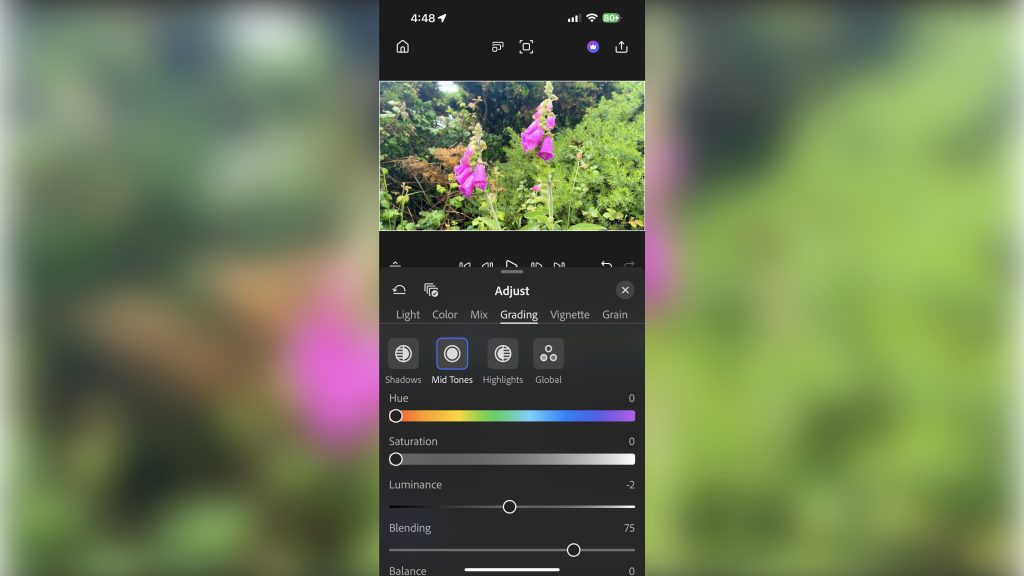
- Split Toning: To separately adjust highlights and shadows, swipe left or right on the sliders located in the HSL/Color tool for fast editing.
These mobile shortcuts not only streamline your process but also give you the freedom to experiment and adapt your editing style while out in the field.
Canva: Simplifying Graphic Design
Canva’s intuitive design platform has revolutionized how people create visuals, and utilizing shortcuts in Canva can elevate your projects:
- Text Editing: Use Command + B (Mac) or Control + B (Windows) to quickly bold your text, which is a must when crafting visually striking graphics.
- Aligning Elements: Select multiple elements and use Shift + Arrow keys for fine-tuning the position of your graphics without wrecking your layout.
- Undo Your Last Action: Accidentally deleted an element? Simply press Command + Z to undo, restoring your design easily.
By seamlessly integrating these shortcuts into your workflow, you can ensure that your design and editing processes are as enjoyable and efficient as possible.
Understanding and implementing shortcuts can open up new realms of efficiency and creativity, enabling you to capture and edit like a professional. Whether it’s enhancing a landscape or crafting a promotional graphic, these tools—and the knowledge of how to use them—are integral to your success as a creator. In the next sections, we will delve into even more advanced techniques that can propel your editing skills to new heights.
DISCOVER MORE: Click here to learn more
Conclusion: Elevate Your Creativity with App Shortcuts
In the fast-paced world of photography and graphic design, mastering app shortcuts is essential for both efficiency and creativity. By integrating the various shortcuts available in leading photo editing applications like Adobe Photoshop, Lightroom Mobile, and Canva, you can drastically streamline your workflow, allowing for more time to focus on honing your artistic vision. Efficiency leads to creativity; the faster you can navigate through your editing tasks, the more time you have to explore and refine your unique style.
From enhancing images on-the-go with Lightroom Mobile to crafting visually compelling designs in Canva, understanding these shortcuts can transform your editing experience. Additionally, the foundational tools in Adobe Photoshop not only help professionals achieve stunning results but also empower newcomers to elevate their skills. Each shortcut provides an opportunity to improve your speed without compromising quality, thus redefining what it means to create like a pro.
As you continue to explore these apps and their capabilities, consider diving deeper into their functionalities, experimenting with advanced techniques, and developing your own editing workflow. The world of digital editing is ever-evolving, and with the right knowledge at your fingertips, you can stay ahead of the curve. So, embark on your editing journey with confidence, and let these shortcuts guide you toward creating unforgettable images that reflect your artistic essence.